Building and editing SwiftUI lists
Create rows and sections, add deletion and reordering, and customize the list’s appearance.
Read the Korean original on Velog ↗English translation

A list starts as a vertical collection of data, but a real screen often needs groups, deletion, reordering, and new items. Expanding a small shopping list shows where each capability belongs.
List content
Pass views to a List to display them as rows.
List {
	Text("apple") // First row
	Text("banana") // Second row
	Text("oragne") // Third row
}
Use ForEach with identifiable data to generate rows dynamically.
struct ListStudy: View {

    @State var fruits: [String] = [
        "apple", "banana", "orange"
    ]

    var body: some View {
        List {
        	// List displaying the fruits array
            ForEach(fruits, id: \.self) { fruit in
                Text(fruit)
            }
        }
    }
}
Sections
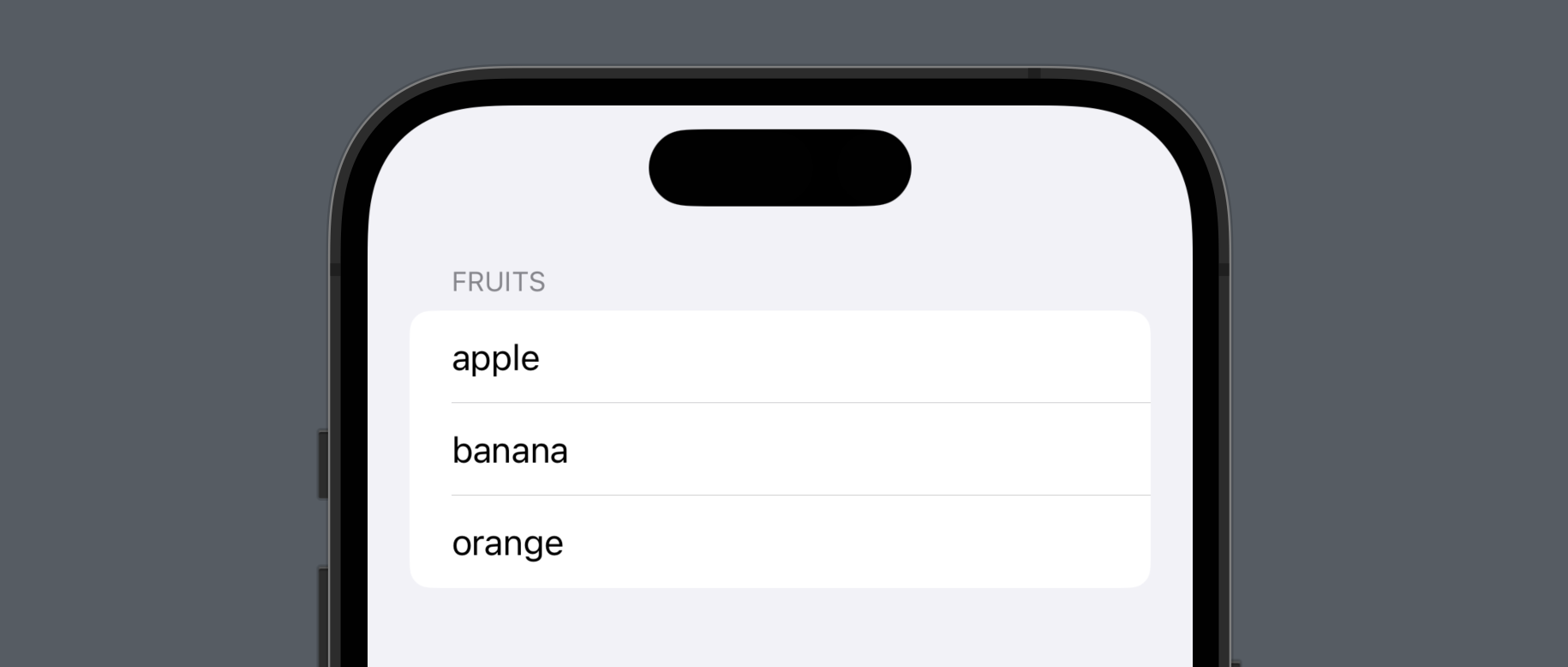
A Section groups related rows and can include a header and footer.
struct ListStudy: View {

    @State var fruits: [String] = [
        "apple", "banana", "orange"
    ]

    var body: some View {
        List {
            Section { // Add a section
                ForEach(fruits, id: \.self) { fruit in
                    Text(fruit)
                }
            } header: { // Add a header
                Text("Fruits")
            }
        }
    }
}
Deleting rows
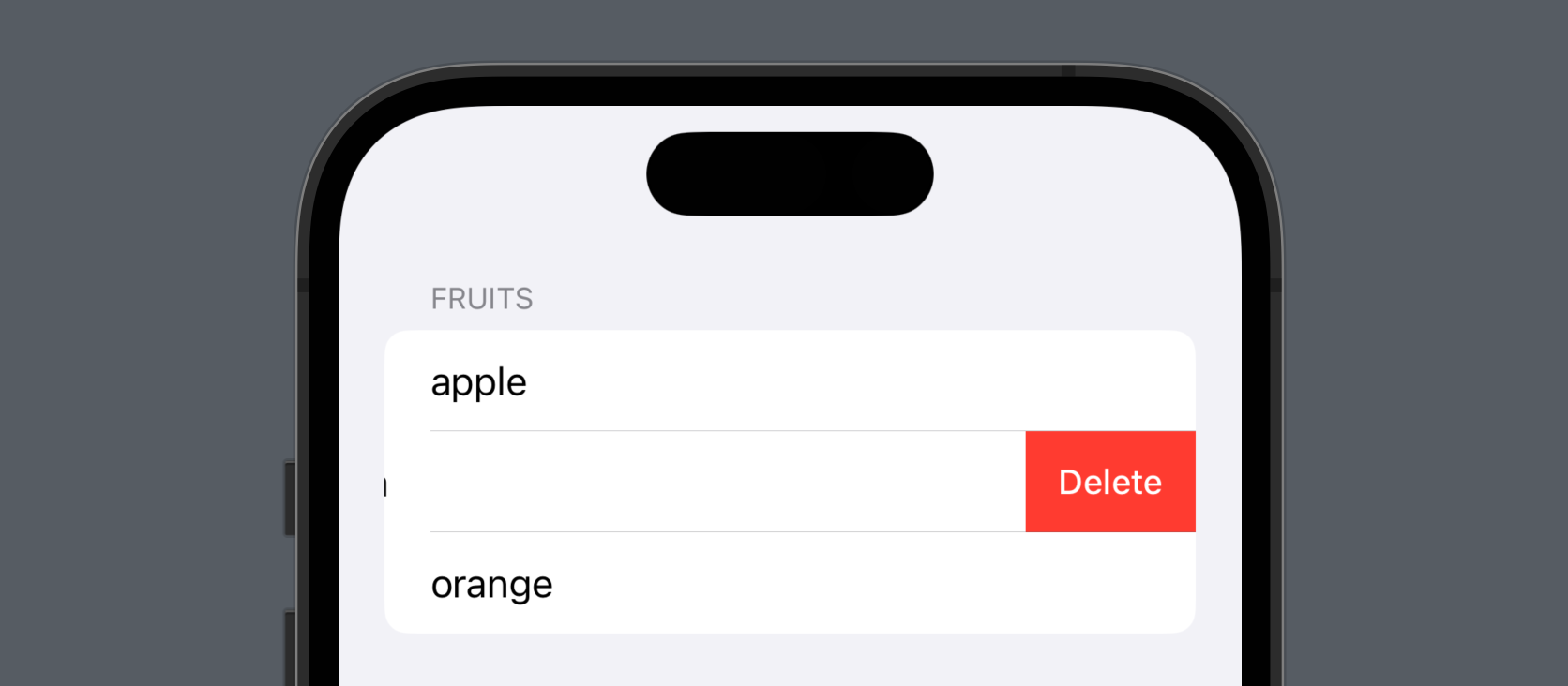
onDelete receives an IndexSet identifying the rows to remove. IndexSet, from Foundation, represents a set of integer indices.
struct ListStudy: View {

    @State var fruits: [String] = [
        "apple", "banana", "orange"
    ]

    var body: some View {
        List {
            Section {
                ForEach(fruits, id: \.self) { fruit in
                    Text(fruit)
                }
                // Delete items from the list
                .onDelete { indexSet in
                    fruits.remove(atOffsets: indexSet)
                }
            } header: {
                Text("Fruits")
            }
        }
    }
}
Extract fruits.remove(atOffsets: indexSet) into a delete function, then pass that function to the perform parameter of onDelete.
struct ListStudy: View {

    @State var fruits: [String] = [
        "apple", "banana", "orange"
    ]

    var body: some View {
        List {
            Section {
                ForEach(fruits, id: \.self) { fruit in
                    Text(fruit)
                }
                // Pass delete to the perform parameter
                .onDelete(perform: delete(indexSet:))
            } header: {
                Text("Fruits")
            }
        }
    }

    func delete(indexSet: IndexSet) {
        fruits.remove(atOffsets: indexSet)
    }
}
Passing the function directly avoids writing a separate closure just to forward its argument.
struct ListStudy: View {

    @State var fruits: [String] = [
        "apple", "banana", "orange"
    ]

    var body: some View {
        List {
            Section {
                ForEach(fruits, id: \.self) { fruit in
                    Text(fruit)
                }
                // Pass the delete function directly
                .onDelete(perform: delete)
            } header: {
                Text("Fruits")
            }
        }
    }

    func delete(indexSet: IndexSet) {
        fruits.remove(atOffsets: indexSet)
    }
}
Reordering rows
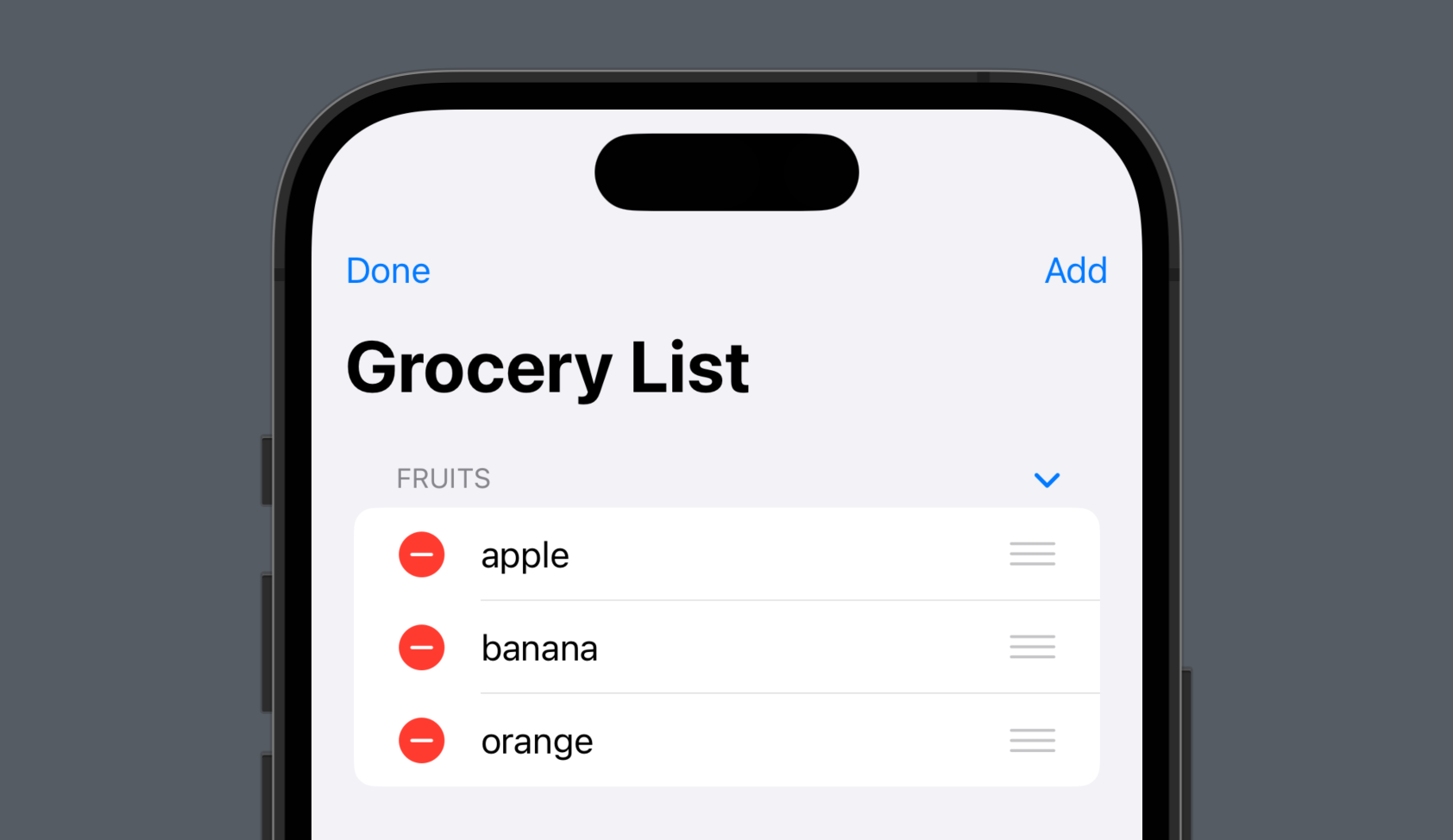
onMove lets the user change row order. In this example, the list sits inside a NavigationView, and an EditButton() enables the editing controls.
struct ListStudy: View {

    @State var fruits: [String] = [
        "apple", "banana", "orange"
    ]

    var body: some View {
    	// Add a NavigationView
        NavigationView {
            List {
                Section {
                    ForEach(fruits, id: \.self) { fruit in
                        Text(fruit)
                    }
                    .onDelete(perform: delete)
                    // Reorder list items
                    .onMove { indices, newOffset in
                        fruits.move(fromOffsets: indices, toOffset: newOffset)
                    }
                } header: {
                    Text("Fruits")
                }
            }
            .navigationTitle("Grocery List")
            .navigationBarItems(leading: EditButton()) // Add an EditButton
        }
    }

    func delete(indexSet: IndexSet) {
        fruits.remove(atOffsets: indexSet)
    }
}
Extract fruits.move(fromOffsets: indices, toOffset: newOffset) into a move function and pass it to onMove, just as with deletion.
struct ListStudy: View {

    @State var fruits: [String] = [
        "apple", "banana", "orange"
    ]

    var body: some View {
        NavigationView {
            List {
                Section {
                    ForEach(fruits, id: \.self) { fruit in
                        Text(fruit)
                    }
                    .onDelete(perform: delete)
                    // Pass move directly to the perform parameter
                    .onMove(perform: move)
                } header: {
                    Text("Fruits")
                }
            }
            .navigationTitle("Grocery List")
            .navigationBarItems(leading: EditButton())
        }
    }

    func move(indices: IndexSet, newOffset: Int) {
        fruits.move(fromOffsets: indices, toOffset: newOffset)
    }
    func delete(indexSet: IndexSet) {
        fruits.remove(atOffsets: indexSet)
    }
}
Adding rows
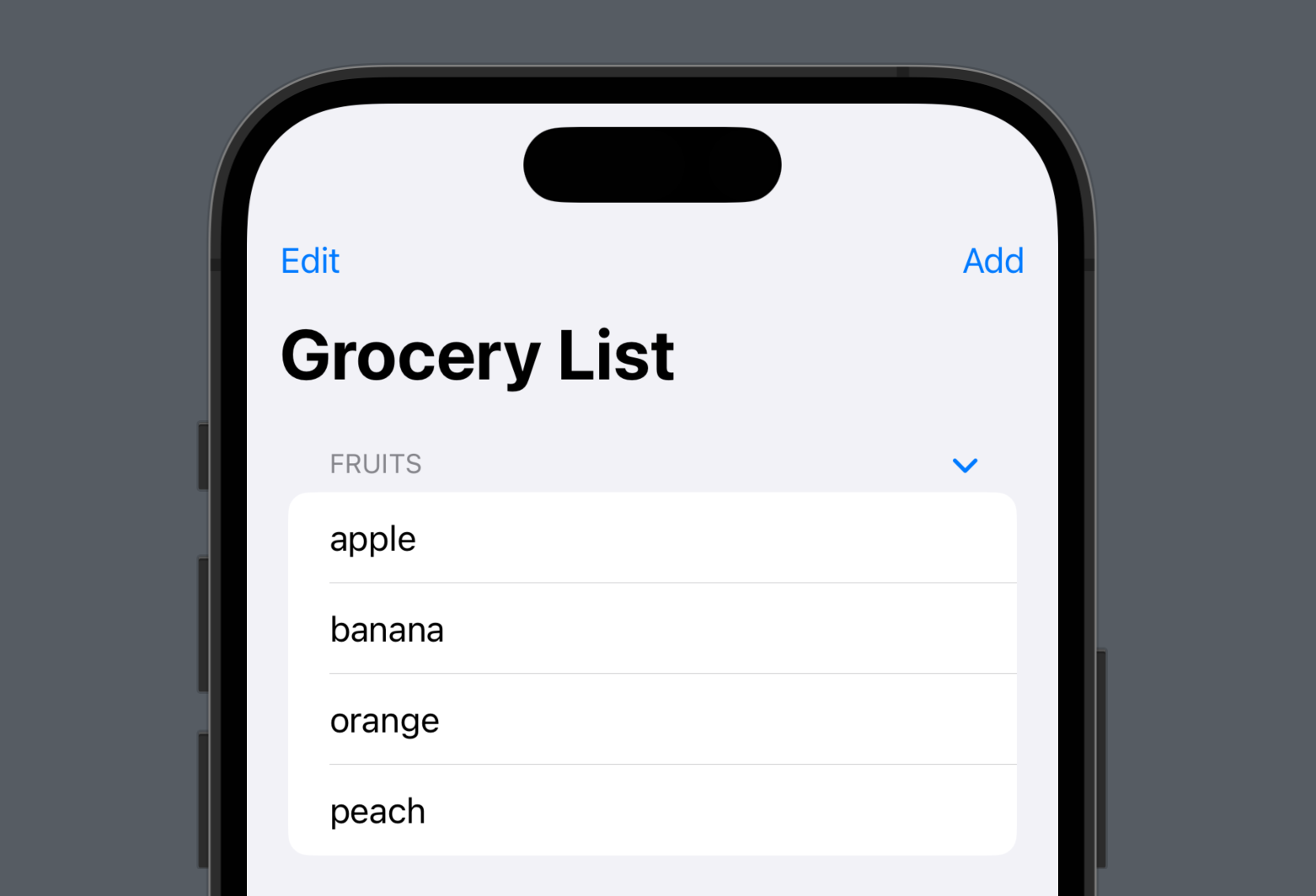
A button in the navigation bar can append an item to the list's data.
struct ListStudy: View {

    @State var fruits: [String] = [
        "apple", "banana", "orange"
    ]

    var body: some View {
        NavigationView {
            List {
                Section {
                    ForEach(fruits, id: \.self) { fruit in
                        Text(fruit)
                    }
                    .onDelete(perform: delete)
                    .onMove(perform: move)
                } header: {
                    Text("Fruits")
                }
            }
            .navigationTitle("Grocery List")
            .navigationBarItems(
                leading: EditButton(),
                // Add a button for new items
                trailing:
                    Button("Add", action: {
                        add()
                    })
            )
        }
    }

    // Define the add-item function
    func add() {
        fruits.append("peach")
    }
    func move(indices: IndexSet, newOffset: Int) {
        fruits.move(fromOffsets: indices, toOffset: newOffset)
    }
    func delete(indexSet: IndexSet) {
        fruits.remove(atOffsets: indexSet)
    }
}
The add button can also be extracted into its own view property.
struct ListStudy: View {

    @State var fruits: [String] = [
        "apple", "banana", "orange"
    ]

    var body: some View {
        NavigationView {
            List {
                Section {
                    ForEach(fruits, id: \.self) { fruit in
                        Text(fruit)
                    }
                    .onDelete(perform: delete)
                    .onMove(perform: move)
                } header: {
                    Text("Fruits")
                }
            }
            .navigationTitle("Grocery List")
            .navigationBarItems(
                leading: EditButton(),
                trailing: addButton // Add-item button view
            )
        }
    }

    // Define the add-item button view
    var addButton: some View {
        Button("Add") {
            add()
        }
    }

    func add() {
        fruits.append("peach")
    }
    func move(indices: IndexSet, newOffset: Int) {
        fruits.move(fromOffsets: indices, toOffset: newOffset)
    }
    func delete(indexSet: IndexSet) {
        fruits.remove(atOffsets: indexSet)
    }
}
List styles
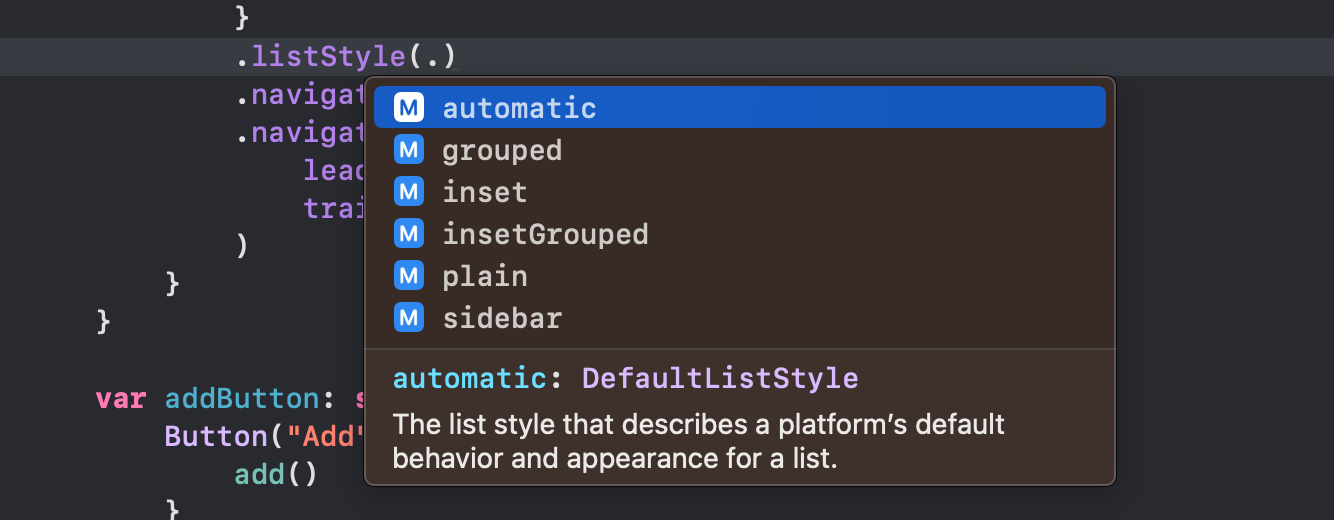
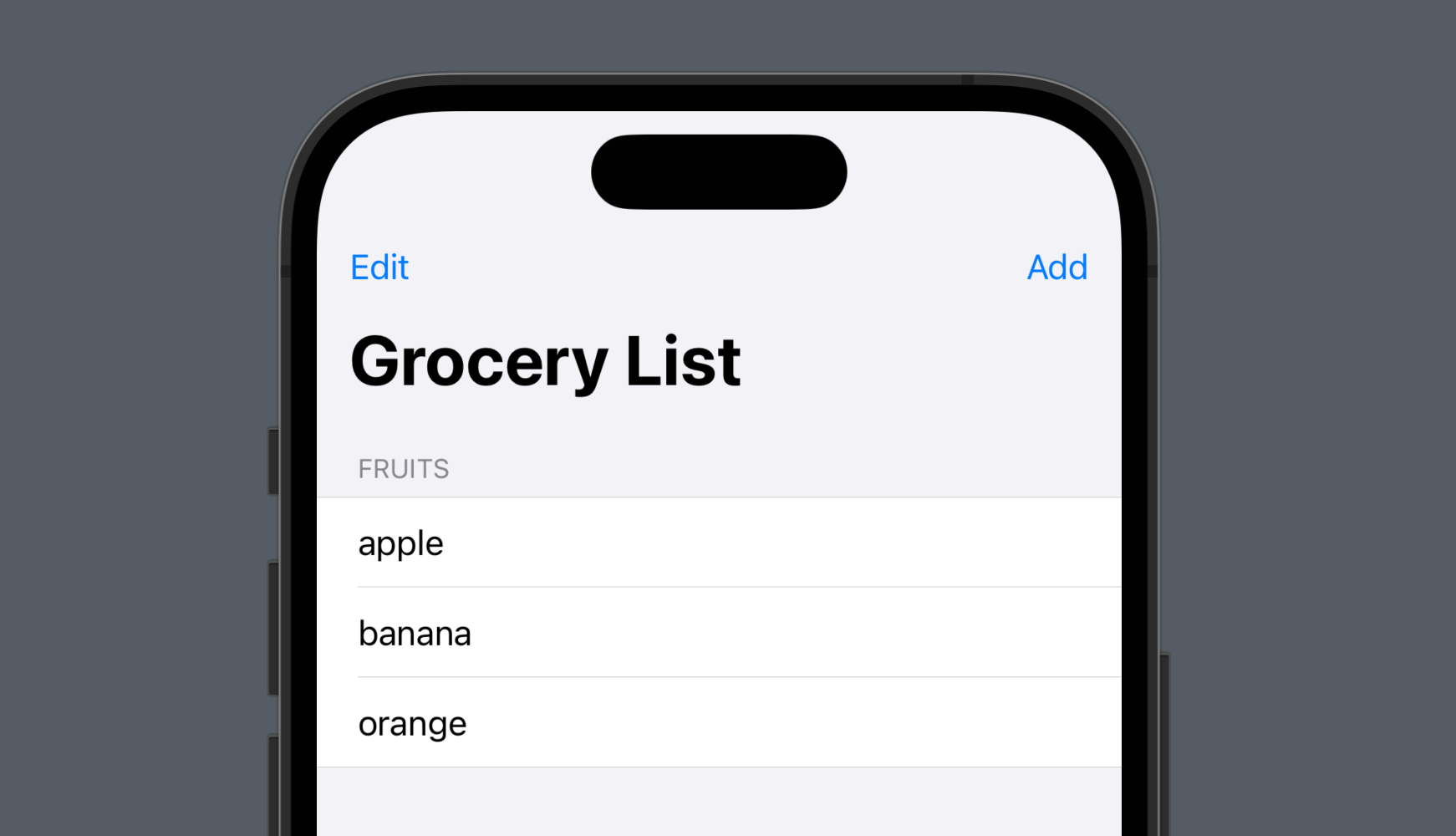
Apply a listStyle modifier to choose the list's overall presentation.
NavigationView {
	List {
		Section {
			ForEach(fruits, id: \.self) { fruit in
				Text(fruit)
			}
			.onDelete(perform: delete)
			.onMove(perform: move)
		} header: {
			Text("Fruits")
		}
	}
	.listStyle(.grouped) // Change the list style
	.navigationTitle("Grocery List")
	.navigationBarItems(
		leading: EditButton(),
		trailing: addButton
	)
}
Customizing appearance
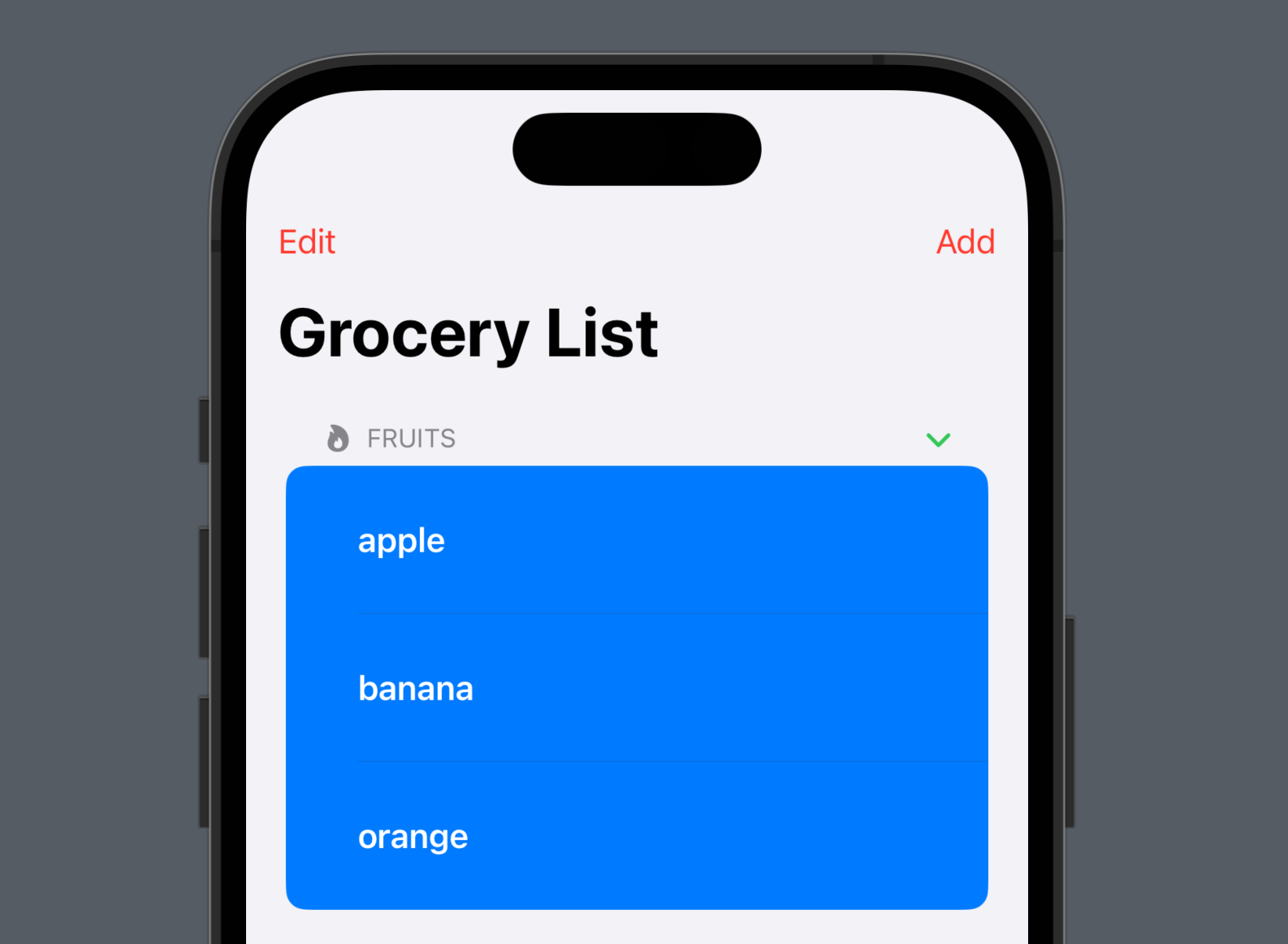
Modifiers such as accentColor and listRowBackground adjust the appearance of the list and its rows.
NavigationView {
    List {
        Section {
            ForEach(fruits, id: \.self) { fruit in
                Text(fruit)
                	// Style the row
                    .font(.headline)
                    .foregroundColor(.white)
                    .padding()
            }
            .onDelete(perform: delete)
            .onMove(perform: move)
            // Set the row background
            .listRowBackground(Color.blue)
        } header: {
        	// Add a header image
            HStack {
                Image(systemName: "flame.fill")
                Text("Fruits")
            }
        }
    }
    // Change the list's accent color
    .accentColor(.green)
    .navigationTitle("Grocery List")
    .navigationBarItems(
        leading: EditButton(),
        trailing: addButton
    )
}
// Change the navigation accent color
.accentColor(.red)