Sizing and rendering SwiftUI images
Load images, control fit and fill, apply masks, and customize template rendering.
Read the Korean original on Velog ↗English translation

Displaying an image is easy; deciding how it should occupy an area takes more care. These examples explore aspect ratios, cropping, masks, and rendering colors.
Image size
Use a resizable image and a frame to control its displayed size.
Image("testImage")
	.resizable() // Allow resizing
	.frame(width: 300, height: 250) // Set the image frame size
Fill
Fill mode preserves the aspect ratio while covering the proposed area. Parts of the image can extend beyond the frame and may need clipping.
Image("testImage")
	.resizable()
    .aspectRatio(contentMode: .fill) // Resize the image to its frame
    .scaledToFill() // Same effect as above
    .frame(width: 300, height: 250)
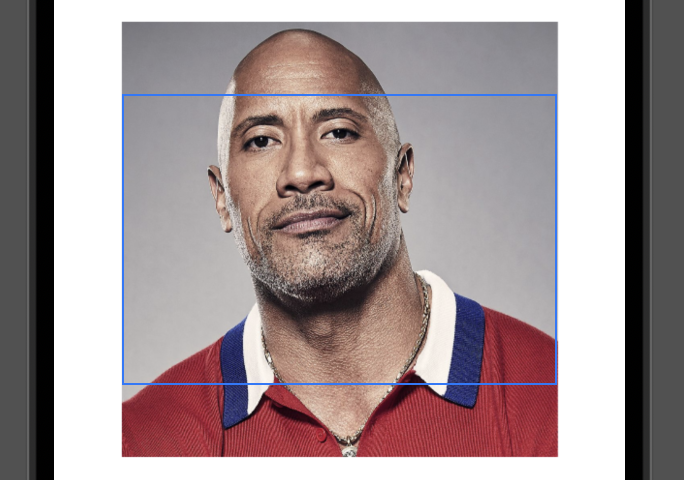
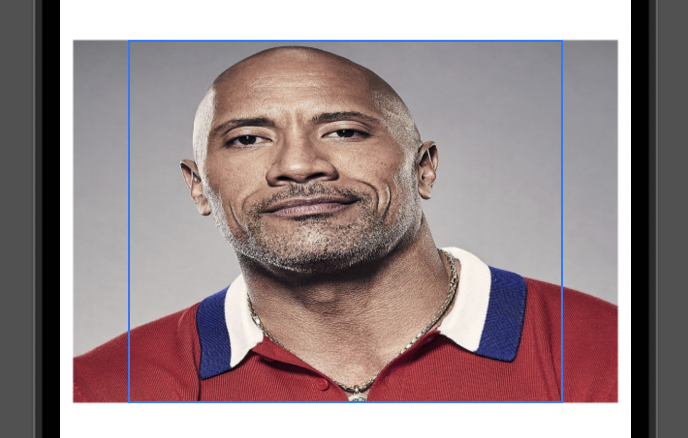
Supply an explicit aspectRatio to use a chosen width-to-height ratio.
Image("testImage")
	.resizable()
    .aspectRatio(1.5, contentMode: .fill) // Set a custom aspect ratio
    .frame(width: 300, height: 250)
Fit
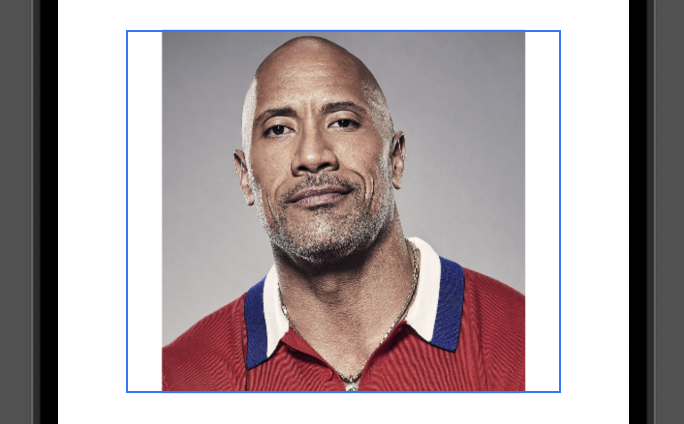
Fit mode preserves the aspect ratio while keeping the whole image inside the proposed area.
Image("testImage")
	.resizable()
    .aspectRatio(contentMode: .fit) // Resize the image to its frame
    .scaledToFit() // Same effect as above
    .frame(width: 300, height: 250)
An explicit aspectRatio sets a custom width-to-height ratio here as well.
Image("testImage")
	.resizable()
    .aspectRatio(1.5, contentMode: .fit) // Set a custom aspect ratio
    .frame(width: 300, height: 250)
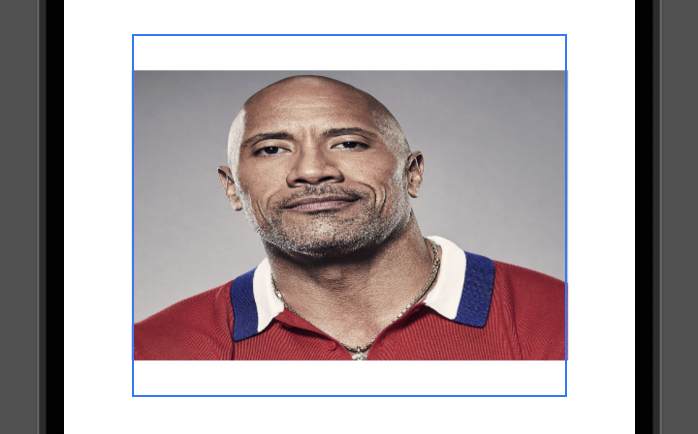
Clipping masks
Clip the image to a shape to control its visible outline.
Image("testImage")
	.resizable()
    .aspectRatio(contentMode: .fill)
    .scaledToFill()
    .frame(width: 300, height: 250)
    .clipped() // Clip content outside the frame
    .cornerRadius(24) // Clip to a rounded rectangle
    .clipShape(Circle()) // Clip to a shape
Rendering mode
Template rendering lets a foreground style supply the color for the image's nontransparent regions.
Image("apple")
	.renderingMode(.template) // Use template rendering
	.resizable()
	.aspectRatio(contentMode: .fit)
	.frame(width: 300, height: 200)
	.foregroundColor(.green) // Tint the opaque regions of the template image
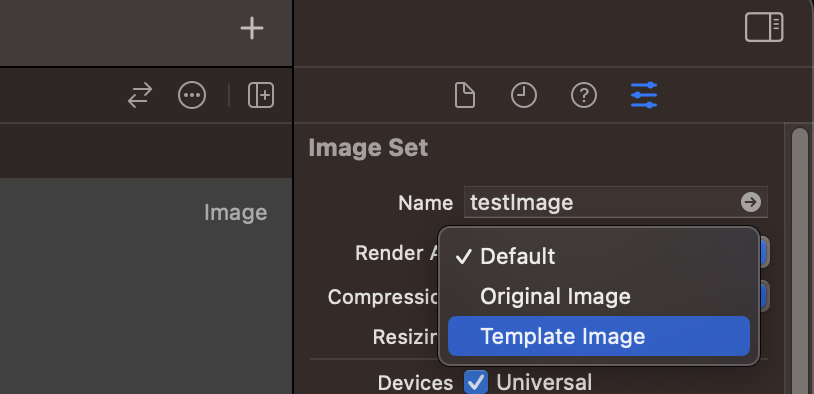
The asset catalog's Attributes inspector can set the rendering mode in advance. An asset configured as a template does not need a separate .renderingMode(.template) modifier.