SwiftUI Alert 구성과 상태 관리하기
제목·메시지·버튼을 구성하고 바인딩 상태로 Alert의 표시 시점을 제어하는 방법을 정리합니다.
Alert는 짧은 메시지 하나를 보여주는 뷰지만 표시 상태와 버튼의 역할이 섞이면 금방 복잡해진다. 확인만 받는 경우와 두 행동 중 하나를 고르는 경우를 나누어 구성했다.
확인 Alert
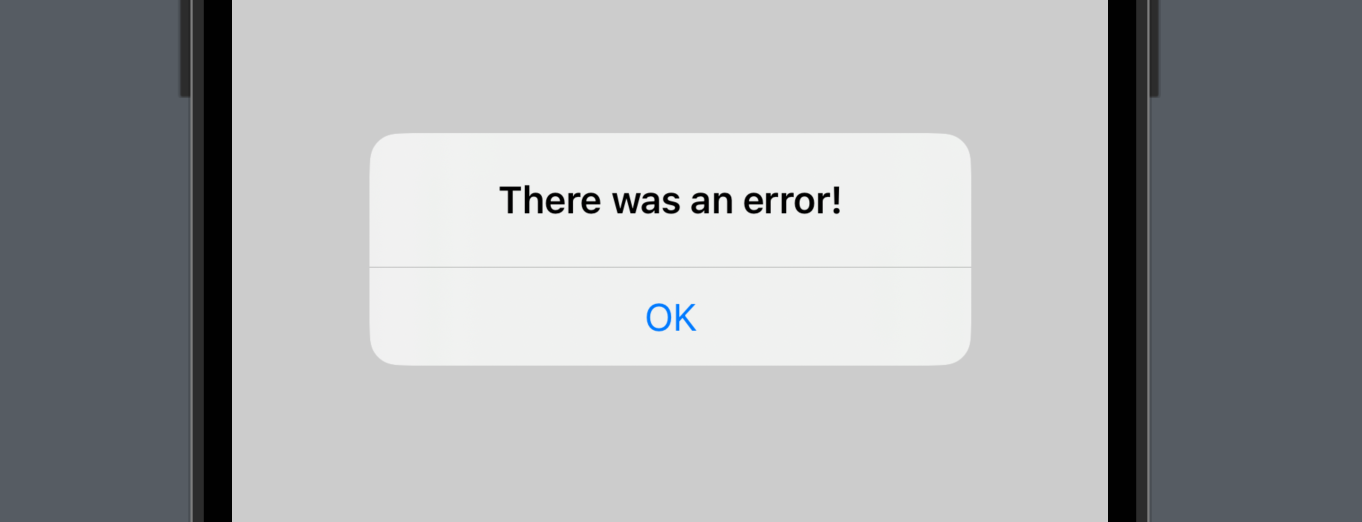
Alert 메시지를 표시하고, 사용자는 메시지를 확인할 수 있다.
struct AlertStudy: View {

    @State var showAlert: Bool = false // 상태 변수

    var body: some View {
        Button("Click Here!") {
            showAlert.toggle() // showAlert를 true로 설정
        }
        // Alert 뷰
        .alert(isPresented: $showAlert) {
            Alert(title: Text("There was an error!"))
        }
    }
}
선택 Alert
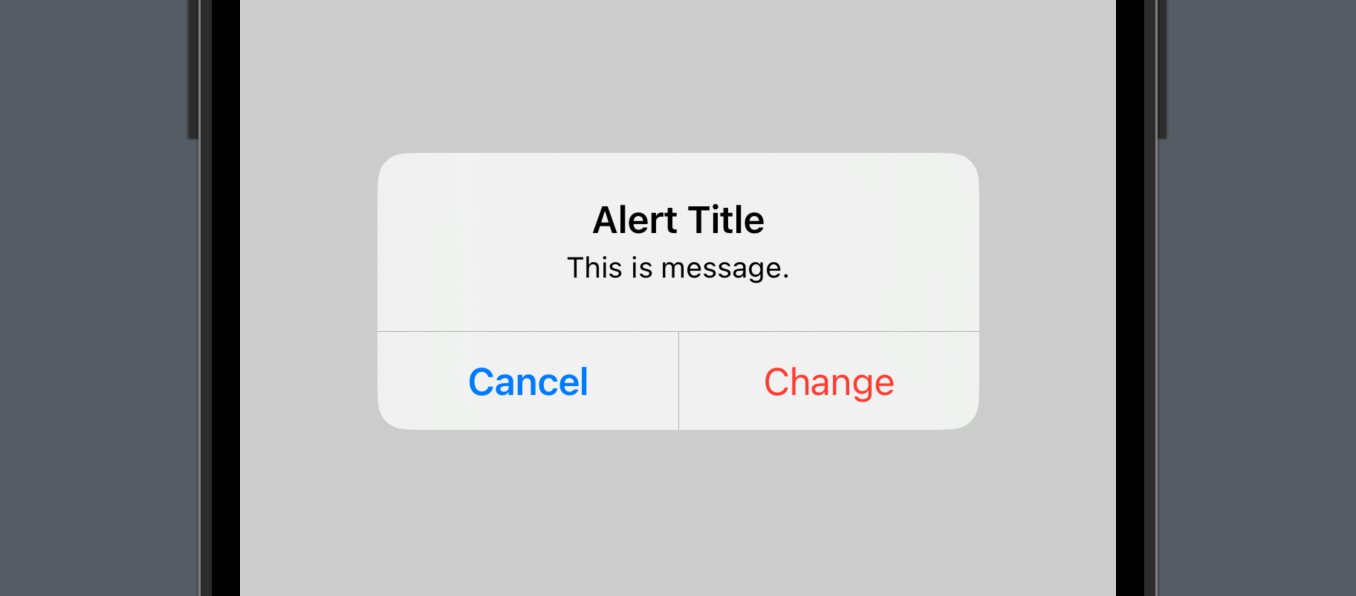
- Alert 메시지를 표시하고, 사용자는 다음 액션에 대해 선택할 수 있다.
primaryButton는 주 버튼으로 설정되며,secondaryButton는 보조 버튼으로 설정된다.default는 기본적인 버튼 스타일로, 주로확인과 같은 긍정적인 동작을 수행하는 버튼에 사용된다.cancel은 주로취소와 같은 부정적인 동작을 수행하는 버튼에 사용된다.destructive는삭제주의를 불러일으키는 동작을 수행하는 버튼에 사용된다.
struct AlertStudy: View {

    @State var showAlert: Bool = false
    @State var backgroundColor: Color = .white

    var body: some View {
        ZStack {
            backgroundColor.edgesIgnoringSafeArea(.all)
            Button("Click Here!") {
                showAlert.toggle()
            }
            // Alert 뷰
            .alert(isPresented: $showAlert) {
                Alert(
                    title: Text("Alert Title"),
                    message: Text("This is message."),
                    // 액션 버튼
                    primaryButton: .destructive(Text("Change"), action: {
                        backgroundColor = .yellow
                    }),
                    // 취소 버튼
                    secondaryButton: .cancel()
                )
            }
        }
    }
}
Customizing
Alert를 함수로 추출하고 버튼 별로 title과 message를 원하는 내용으로 커스터마이징할 수 있다.
struct AlertStudy: View {

    @State var showAlert: Bool = false
    @State var alertTitle: String = "" // title 변수
    @State var alertMessage: String = "" // message 변수

    var body: some View {
        VStack(spacing: 40) {
        	// Error 버튼
            Button("Error Button") {
	            // Error Title
                alertTitle = "Error Alert"
                // Error Message
                alertMessage = "This is Error Alert Message."
                showAlert.toggle()
            }
            .alert(isPresented: $showAlert) {
                getAlert()
            }
            // Success 버튼
            Button("Success Button") {
            	// Success Title
                alertTitle = "Success Alert"
                // Success Message
                alertMessage = "This is Success Alert Message."
                showAlert.toggle()
            }
            .alert(isPresented: $showAlert) {
                getAlert()
            }
        }
    }

    // Alert 함수
    func getAlert() -> Alert {
        return Alert(
            title: Text(alertTitle),
            message: Text(alertMessage),
            dismissButton: .default(Text("Ok"))
        )
    }
}
enum을 활용하여 각 케이스에 맞는 Alert을 표시할 수 있다.
struct AlertStudy: View {

    @State var showAlert: Bool = false
    @State var alertType: MyAlert? = nil

    // Alert 케이스 정의
    enum MyAlert {
        case error
        case success
    }

    var body: some View {
        VStack(spacing: 40) {
            Button("Error Button") {
                alertType = .error // error 케이스
                showAlert.toggle()
            }
            .alert(isPresented: $showAlert) {
                getAlert()
            }
            Button("Success Button") {
                alertType = .success // success 케이스
                showAlert.toggle()
            }
            .alert(isPresented: $showAlert) {
                getAlert()
            }
        }
    }

    func getAlert() -> Alert {
    	// 케이스에 따른 Alert
        switch alertType {
        case .error:
            return Alert(
                title: Text("Error Alert"),
                message: Text("This is Error Alert Message."),
                dismissButton: .default(Text("Ok"))
            )
        case .success:
            return Alert(
                title: Text("Success Alert"),
                message: Text("This is Success Alert Message."),
                dismissButton: .default(Text("Ok"))
            )
        default:
            return Alert(title: Text("Error"))
        }
    }
}